
Confluence 5.4 has reached end of life
Check out the [latest version] of the documentation
JIRA is Atlassian's issue tracking and project management system. By adding the JIRA Chart macro to a Confluence page, you can display information about JIRA issues and projects as pie charts.
Before you can use this macro, your Confluence and JIRA sites must be connected via Application Links. People viewing the page will see charts for publicly accessible issues from the JIRA site. If your JIRA site has restricted viewing (that is, people need permission to view issues) then they will need to authenticate before seeing the charts. This macro is compatible with JIRA 5.x and later.
Adding the JIRA Chart macro to a page
Quick guide to using the macro on a Confluence page:
- In the Confluence editor, choose Insert > Other Macros.
- Find and select the required macro.
Speeding up macro entry with autocomplete:
Type { and the beginning of the macro name, to see a list of suggested macros. Details are in Using Autocomplete.
To edit an existing macro: Click the macro placeholder and choose Edit. A macro dialog window will open, where you can edit the parameters of the macro.
Using the JIRA Chart Macro
To add a JIRA chart to your page:
- Insert the JIRA Chart macro (see above).
Select your JIRA server.
If you have multiple JIRA instances linked to Confluence the drop down will default to the primary application link.
- Search for issues - you can enter the query in JQL or paste a JIRA URL directly into the search field.
- Choose Preview to see the chart.
- Choose Insert.
To find out more about searching for issues see Displaying issues via a JIRA Query Language (JQL) search.
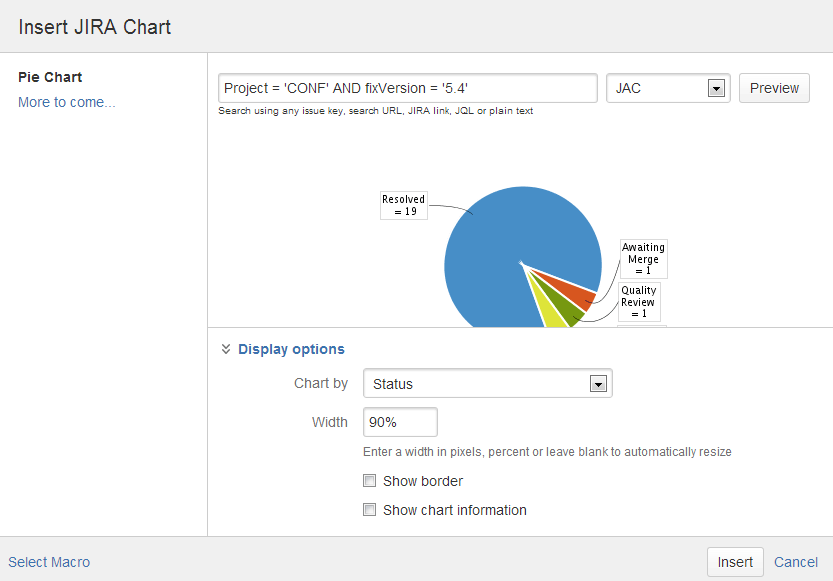
You can further control how the chart appears on your page. Choose Display options:
- Chart by - select the JIRA field you want to segment the pie chart by.
- Width - define the total width of the chart area. You can enter values in pixels or percent. Leave blank to auto fit.
- Show border - add a border around the chart area
- Show chart information - include a text summary under the chart with the total issues count and chart by value.
Screenshot: The JIRA Chart Macro in the macro browser
Disabling the JIRA Chart macro
The functionality is provided by an add-on (plugin) called 'JIRA Macros'. This macro is also used for the JIRA Issues macro. To make the macro unavailable on your site, you can disable the add-on. See Disabling and enabling apps.
Notes
HTTPS: The JIRA Chart macro can access a JIRA site running under SSL provided the Confluence server is configured to accept the JIRA SSL certificate. See Connecting to LDAP or JIRA or Other Services via SSL.
Authentication: If the query includes issues that require authentication (issues that are not visible to anonymous users in JIRA), users will be prompted to authenticate to view charts on the Confluence page.
In order to search for issues in the macro browser you may need to authenticate. With JIRA 5.x you will be able to search for unrestricted issues as an anonymous user, however with JIRA 6.x you must be authenticated to search for any issues.
Code examples for this macro
See:
Overview
Content Tools
Apps
 Except where otherwise noted, content in this space is licensed under a Creative Commons Attribution 2.5 Australia License.